File Deep Info · iPhone / iPad / Mac
Help Center
From importing your first file to reviewing findings, cleaning metadata and saving a copy. For iPhone, iPad and Mac.
01
Import files and start inspecting
Analysis starts automatically after you add files. Select a file to see its results.
iPhone / iPad
- Tap the + button and choose files or photos. The file picker supports selecting multiple files at once.
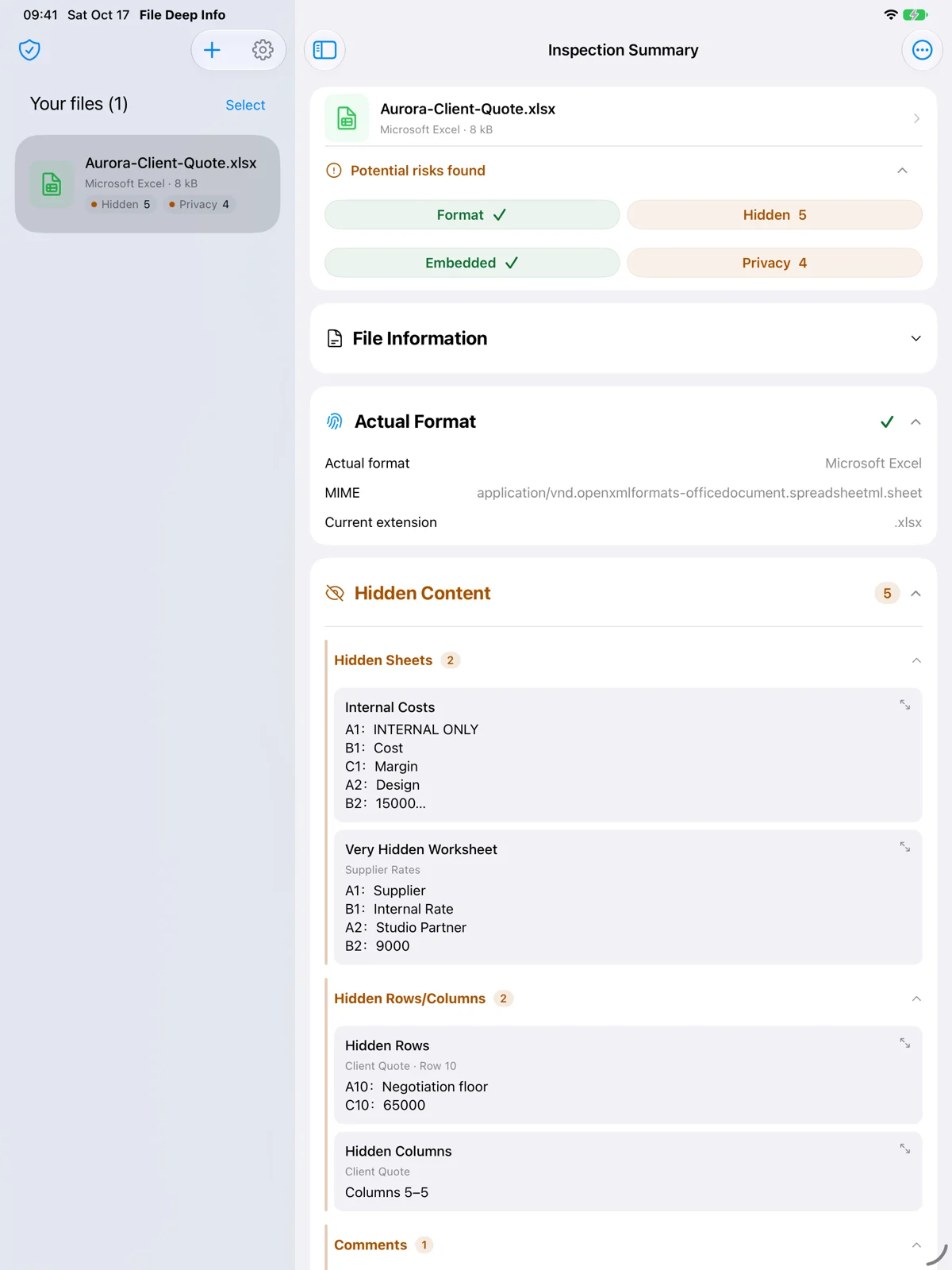
- On iPhone, tap a file in the list to open its summary. On iPad, switch files in the sidebar; use the sidebar button in a narrow window.
Mac
- Use the import button to select one or more files, or drag files into the window.
- New files are analyzed in the background. Select a file in the list to switch results.
02
Read the summary, then inspect the details
Review actual format, hidden content, embedded files and metadata one section at a time.
iPhone / iPad
- Expand a section in the inspection summary and tap an item for details. Tap the file header to preview the original.
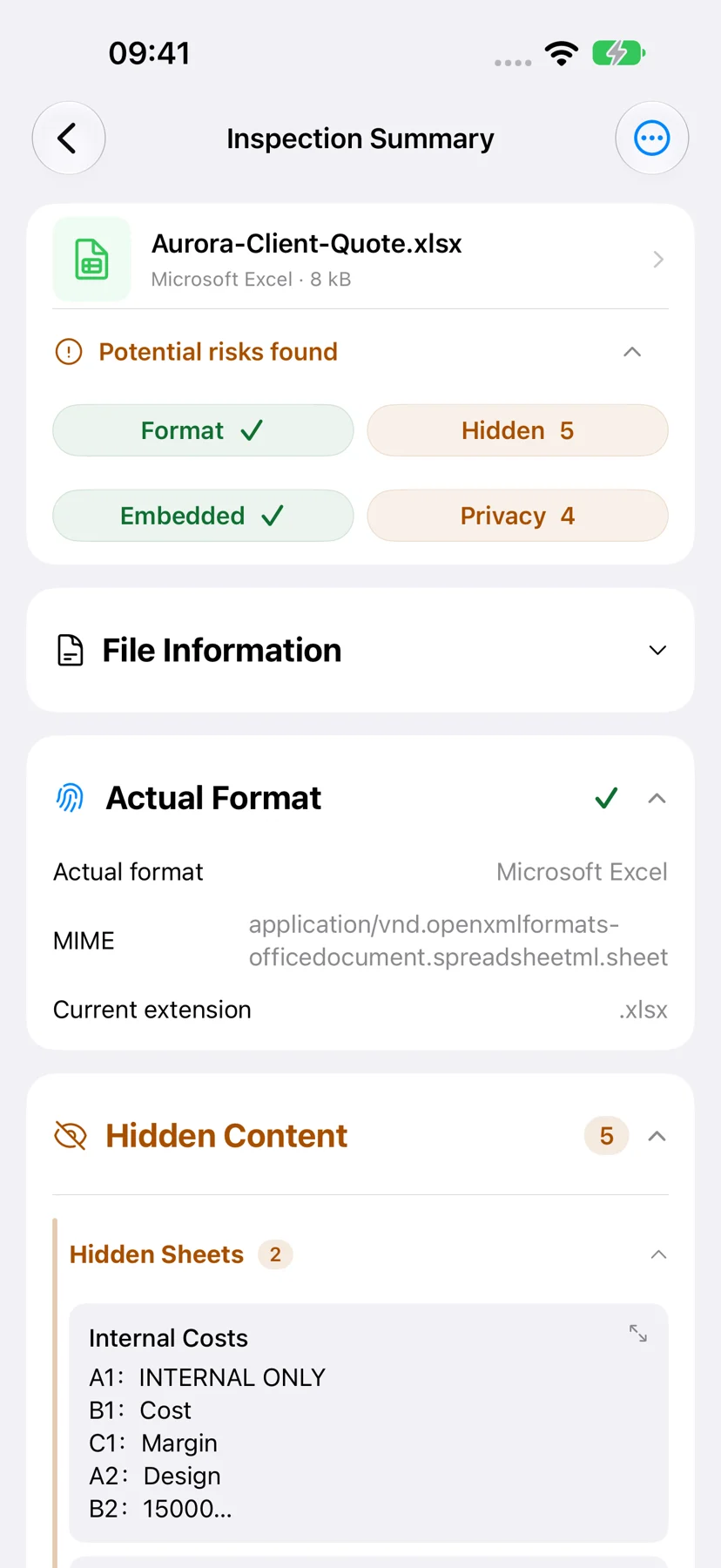
- Actual format checks the extension; hidden content reveals text, sheets or notes; metadata shows fields such as author, dates and GPS.
Mac
- Start with Overview for results and checksums, then switch to Hidden Data, Embedded Objects or Metadata.
- Sort the findings using column headings and open an item to review its content and location.
Read the inspection summary
Tap a file on iPhone to open its summary. On iPad, the file list and details appear side by side when space allows. These screenshots are from the mobile App Store materials.
03
Explore files within files
A PDF can contain a ZIP with an Excel file inside. Follow the attachment tree to find the file you need.
iPhone / iPad
- Expand Embedded Files and tap a file to preview it.
- Use export to save a file. For batch export, select the files first, then export the selection. Export requires Pro.
Mac
- Open Embedded Objects, expand the tree and select an object to preview it.
- Right-click an object to export it; containers offer batch export. Exporting and opening objects in a system app require Pro.
04
Choose metadata and create a clean copy
Cleanup removes the metadata fields you select. Edit hidden document content in the original editing app.
iPhone / iPad
- Expand Metadata and select fields to remove, or select all privacy fields.
- Tap Clean and Export. When the copy is ready, review removed fields and the new inspection results, or preview the copy.
Mac
- Open Metadata, select removable fields and choose Clean and Export.
- Review removed information and the copy’s inspection results in the cleanup results window. The original is kept.
05
Save the copy before sharing
After creating the copy, finish saving it. Send or submit the saved copy.
iPhone / iPad
- In cleanup results, choose Save to Files and select a destination, or use Share to send the copy.
- Saving or sharing a cleaned copy requires Pro. You can create a copy and review its results for free.
Mac
- Choose Save Copy… in the cleanup results window, then select a filename and destination.
- Saving requires Pro. After saving, open the containing folder to find the copy you want to send.
06
Unlock Pro or restore a purchase
One Pro purchase works on iPhone, iPad and Mac with the same Apple Account. No subscription.
iPhone / iPad
- Open Settings, then the Pro page to see features and purchase options.
- If you already purchased Pro, choose Restore Purchases on the Pro page using the Apple Account used for the purchase.
Mac
- Open the Pro purchase option in the application menu.
- If you already purchased Pro, use Restore Purchases in the application menu with the Apple Account used for the purchase.
07
Recheck a file or get help
If a check is incomplete or analysis fails, recheck the file.
iPhone / iPad
- Open the more-actions menu at the top right of the inspection summary and choose Recheck.
- For support, note the file type, steps, app version and displayed status, then use the contact page.
Mac
- Use the recheck button in Overview, then review the status of the individual checks.
- For support, provide the file type, steps, app version and a screenshot of the status.